
Chat
Summary
After signing in and activating a LightVela plan, you can chat with the selected Bot from Daily → Chat in My Agent without connecting a messaging channel first. The sidebar keeps that Bot's conversations, so you can start a new one or return to an existing one. Before sending a message, make sure the Bot is online and that plan model credits are available or a model is configured.
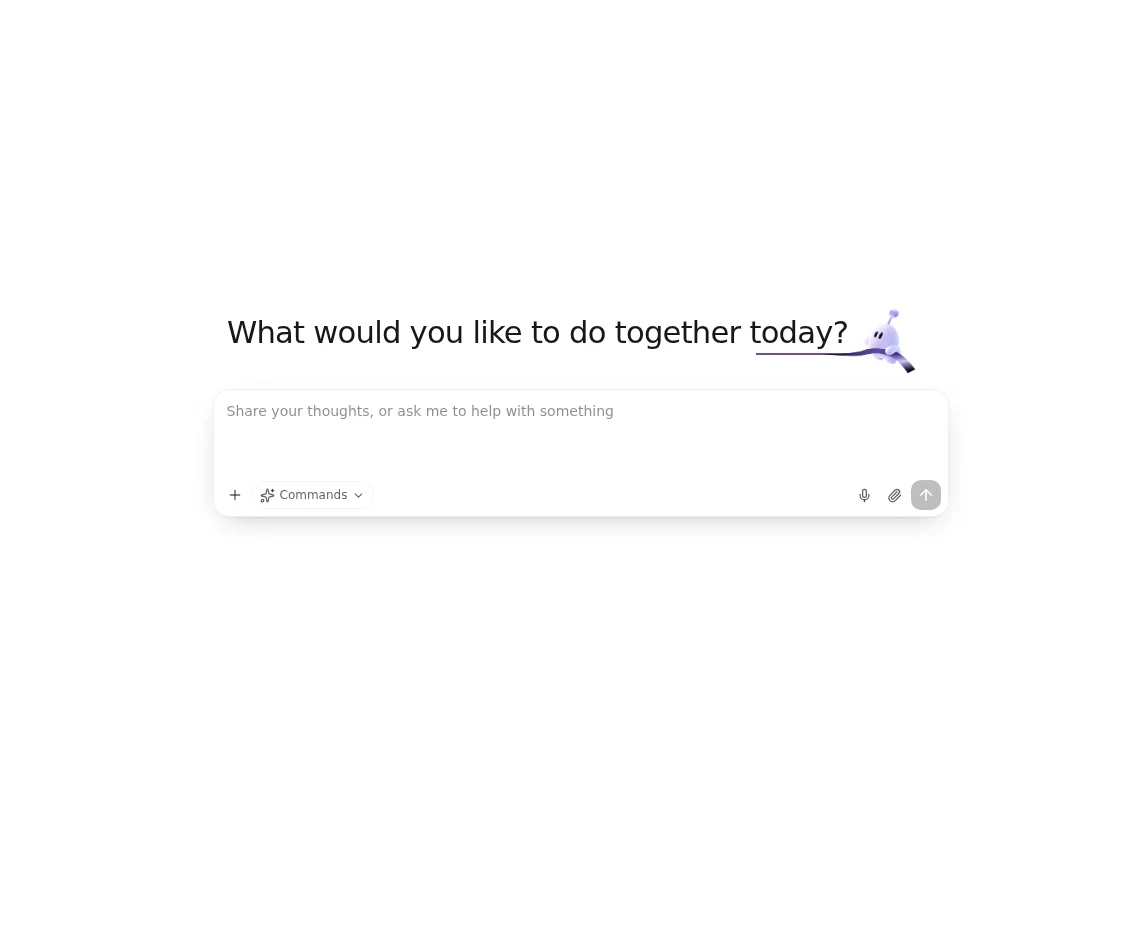
Start a conversation
After signing in with Google or GitHub and activating an available plan, open the Agent console. Complete the first Bot setup: enter a required name, optionally add a description, and adjust its appearance. Select Create and wait for creation and initial configuration to finish. Select Start your journey once configuration finishes, then open Web Chat for that Bot. A messaging channel is optional; available plan model credits or a configured model are required for replies.
- Open My Agent and select the Bot you want to use at the top of the sidebar.
- Under Daily, expand Chat and choose New conversation. You can also start a conversation for a specific Bot from its card on the Overview page.
- Enter your question or task in “Share your thoughts, or ask me to help with something,” then send it.
- Read the reply in the conversation. The composer appears as soon as a new conversation opens, so you can start writing; sending becomes available once the connection is ready. Opening an existing conversation may briefly show “Your AI companion will be right here.”
Web Chat does not require a messaging channel. To use the same Bot in Telegram, WhatsApp, Discord, or WeChat, connect that platform under Channels.
Return to or manage conversations
Recent conversations for the selected Bot appear under Chat. Select a title to continue; use Show more to reveal older conversations. The menu beside a conversation lets you rename or delete it. Selecting another Bot shows that Bot's conversations.
Hermes retains useful long-term preferences and project details as appropriate. See Memory to inspect the selected Bot's long-term memory; starting a new conversation does not clear it.
Verify and troubleshoot
- Expected result: Your message appears in the conversation, the Bot replies, and you can return to the conversation from the sidebar after reloading.
- Loading message remains: Confirm that the Bot is online, then refresh the page. Wait for the composer before deciding Chat is unavailable.
- Cannot send or receive a reply: Check available plan model credits or Model configuration, and confirm the Bot is not paused. A connected external channel is not required for Web Chat.
Last updated 2026-10-12