
Configure Skills
Summary
Skills are add-on capability packs your Hermes Agent can call, extending it beyond basic conversation to concrete tasks such as organizing to-dos, generating daily reports, browsing the web, searching news, and generating images. They come from Skills.sh and ClawHub, the skill marketplaces shared by OpenClaw and Hermes. Skills are optional: an agent ships with none installed and still converses normally, so the recommended approach is to install one only after you hit a capability limit. There are two ways to install — search by name in the console Skills section, or simply ask the agent to install it in conversation. Installed skills can be removed from the console.
Skills are additional capability packages callable by Hermes. They extend concrete task handling beyond basic conversation, such as automatically organizing to-dos, generating daily reports, browsing web pages, searching news, generating images, and more.
All skills come from Skills.sh and ClawHub — the skill marketplaces shared by OpenClaw and Hermes.
This page covers
-
Relationship between Hermes and skills
-
Two installation methods: console installation and conversation installation
-
Skill usage examples
-
Deleting installed skills
-
FAQ
Positioning of skills
If Hermes combined with a large model gives users an intelligent AI assistant, skills are its "hands and feet". Skills can further extend the capability boundary of an already deployed Hermes.
You can think of skills as "applications" for Hermes:
-
Basic conversation capability = operating system
-
Skills = applications installed on demand
Each skill focuses on a single task, for example:
-
Browsing web pages and querying information with a browser
-
Automatically organizing daily to-dos
-
Sending scheduled news briefings
-
Generating images from descriptions
-
Querying real-time stock and fund information
-
Organizing chat records into structured notes
Hermes automatically determines whether to call the corresponding skill based on conversation context. Users do not need to specify it.
Method 1: Install in the console
- Open your Agent and select Skills in the sidebar.
- Use Skills to search individual skills, or Skill Packages to browse curated bundles. The console supports Skills.sh and ClawHub.
- Open a result to review its source and description, then select Install. Confirm any warning shown before installation.
- Open Installed to verify that the item appears. Use a conversation to confirm that the Agent can call it for the intended task.
Installed items can also be managed from the Installed tab. Install only sources and permissions you trust.
Method 2: Install directly through conversation
In addition to using the console panel, you can also ask Hermes to install a skill directly through conversation. The skill to install still needs to be listed on Skills.sh or ClawHub.
1. Confirm the conversation channel is available
First make sure Hermes is connected to at least one channel (Telegram / WhatsApp / Discord / Slack / WeChat) and can currently chat normally.
2. Tell Hermes which skill to install
Use the command below as a reference. Tell Hermes what skill you want to install and replace [skill name] with the actual name from Skills.sh or ClawHub:
Please install a skill from Skills.sh or ClawHub. Its name is [skill name]For example, to install mcd (McDonald's assistant):
Please install a skill from Skills.sh or ClawHub. Its name is mcdIf everything goes well, Hermes will complete the installation directly and tell you the result.
3. Verify the installation result
You can ask Hermes to show how to use the skill to verify that installation succeeded:
Please show me how to use itOr specify the skill name explicitly:
Please show me how to use mcdSkill usage examples
Using the agent-browser browser-operation skill as an example, after installation you can ask Hermes to perform the following tasks.
Scenario 1: Browse a web page
Use the browser to visit Baidu and tell me what is on the pageHermes opens the page and returns the content in text form.
Scenario 2: Search information through the browser
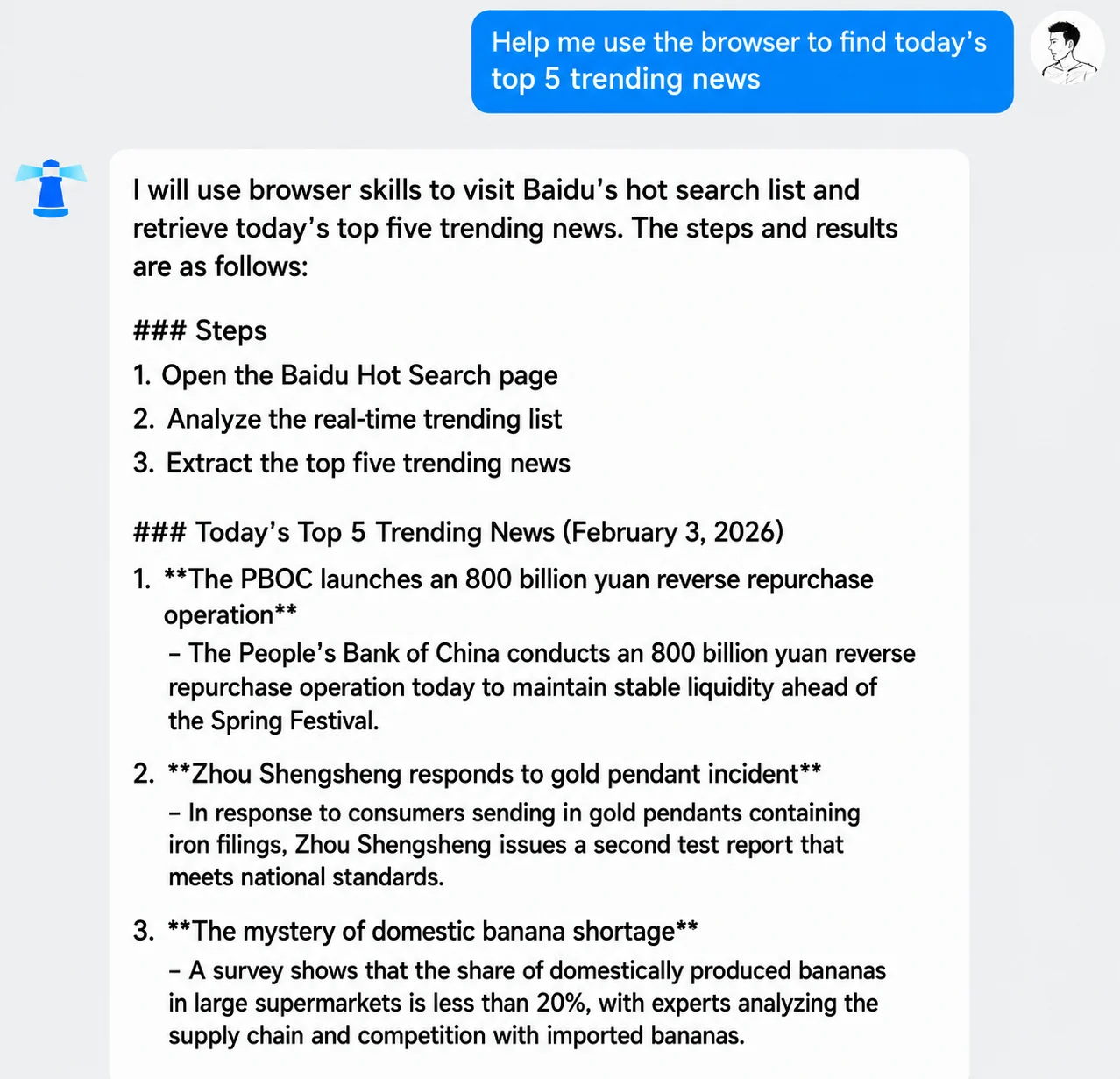
Use the browser to look up today's top 5 trending news storiesScenario 3: Multi-step complex task
Use the browser to search ClawHub and find the currently most-installed email skillThis task includes multiple steps such as opening a web page, waiting for it to load, entering content, and clicking buttons. It is relatively complex. Hermes completes the steps and returns the result.
Delete installed skills
If you no longer use an installed skill, delete it from the console's Installed skills list or ask Hermes to delete it through conversation.
1. View currently installed skills
What skills do you currently have installed?2. Request deletion of a specific skill
Find the skill you want to delete and send a deletion command:
Please delete the email skillIf everything goes well, Hermes will complete the deletion and tell you the result.
3. Verify the deletion result
Check the currently installed skills again and confirm the target skill has been removed from the list:
Check again what skills you currently have installedSuccess state
-
The target skill appears in the "Installed skills" list in the console
-
When you make a related request in conversation, Hermes can correctly recognize and call the skill
-
The skill can be deleted from the console or through conversation
Installation safety tips
Skills have permission to call Hermes capabilities at runtime and may involve:
-
Calling external APIs (consuming the corresponding quota)
-
Reading or sending conversation content
-
Running scheduled operations
Before installation, confirm that the skill author is trustworthy. We recommend:
-
Prefer officially verified skills on Skills.sh or ClawHub
-
Prefer skills with high downloads and good reviews
-
Carefully read the permission description in the skill description
-
Stay cautious with skills that have unclear descriptions or unfamiliar authors
FAQ
Cannot find a skill
Possible cause: The name is misspelled, or the skill has been removed from Skills.sh or ClawHub.
Solution: Go to Skills.sh or ClawHub to confirm the exact skill name and current status.
Installation succeeds but does not take effect in conversation
Possible cause: The model did not recognize that it should use the skill, or the skill list has not been refreshed.
Solution:
-
Send "Please update your skill list" in the conversation
-
Use a clearer instruction, such as "Use the XX skill to complete YY"
Installation says "rate limit triggered, please try again later"
Possible cause: Skills.sh and ClawHub apply API rate limits to protect service stability.
Solution: Wait for a while and try again. We recommend avoiding peak hours.
Skill calls keep failing
Possible causes:
-
External services required by the skill are temporarily unavailable
-
The skill version is outdated
-
The corresponding model does not support the capabilities required by the skill, such as tool calling
Solution:
-
Check the skill's comments and latest version information on Skills.sh or ClawHub
-
Try switching to a model that supports tool calling
-
If the issue persists, contact the skill author
Too many installed skills make Hermes respond slowly
Possible cause: More skills increase the decision-making burden of the Agent.
Solution: Keep only commonly used skills and delete those you no longer use.
How to develop skills
See Skills.sh and ClawHub developer documentation (if available).
Next steps
LightVela basic configuration is complete. You can refer to:
Last updated 2026-08-20