
How to Build a Personal AI Assistant with LightVela
Summary
Start a personal AI assistant by creating and selecting one Bot, then verifying a reply in Web Chat with available model credits or a configured model. Connect a messaging channel only if you want to use that app. Next, test a stable preference across conversations, add a skill for a specific task, and create a scheduled task only after its prompt works. Memory, skills, channels, and tasks are managed for the selected Bot.
Who this is for
This setup works well if you want one assistant for everyday planning, research follow-ups, reminders, and questions that benefit from knowing your preferences. You do not need a complex workflow. Start with a single Hermes Agent and one channel you already check regularly.
It is especially useful when you find yourself repeating context such as your time zone, the format you prefer for summaries, the projects you are working on, or the kind of help you want each morning.
Prerequisites
-
A LightVela account and a running Hermes Agent. If you have not created one yet, start with the Quickstart.
-
Web Chat is enough to start. If you prefer a messaging app, connect a channel as described below.
-
A working model configuration or available trial credits. See Configure Models if Hermes cannot reply yet.
-
A short idea of what you want help with first. A single routine, such as planning your day or collecting follow-ups, is enough.
Steps / key concepts
1. Give Hermes a place in your daily routine
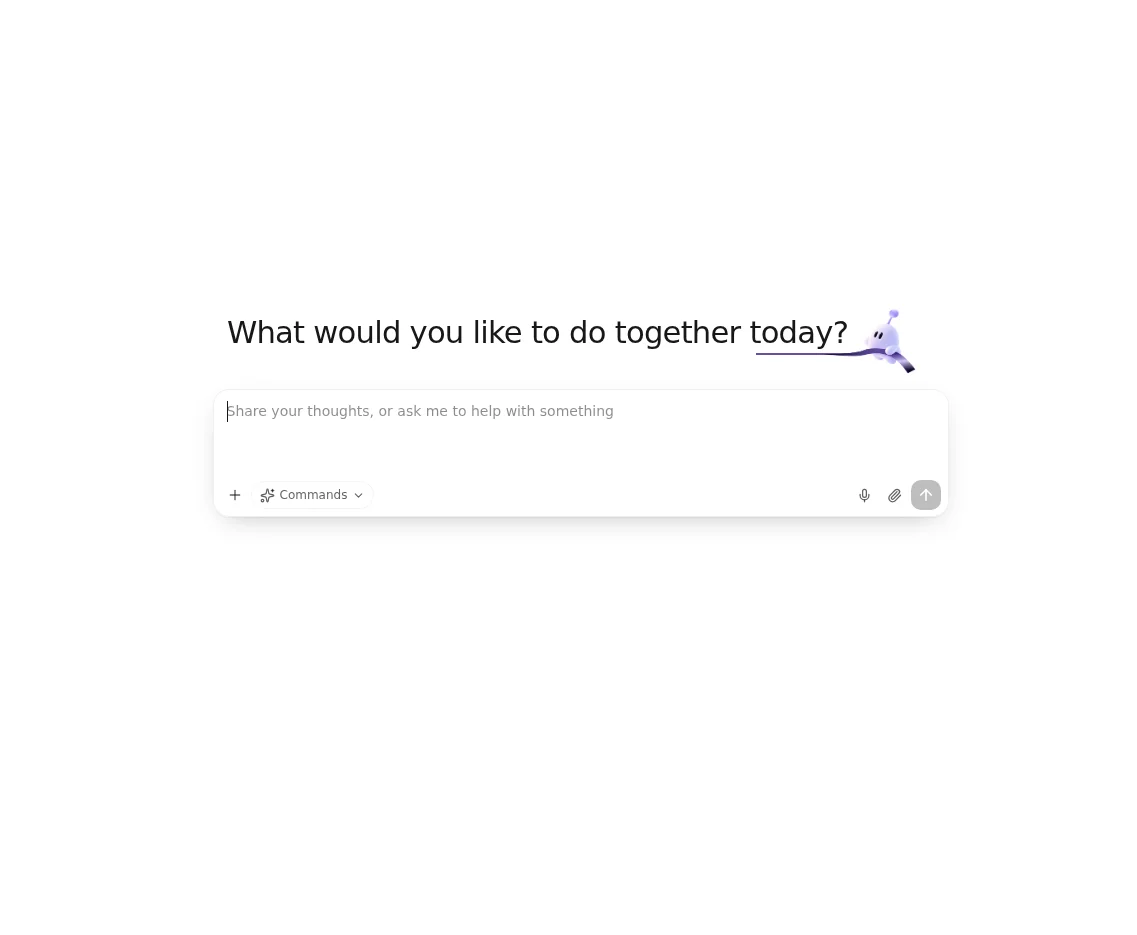
Select the intended Bot’s avatar in the Bot bar. On narrow screens, first expand the navigation panel. Confirm its name before changing models, memory, skills, channels, or scheduled tasks. Web Chat and its conversation list belong to the selected Bot; additional Bots can use Web Chat too. Connecting a messaging channel is not required for Web Chat.
Web Chat is enough to start. If you prefer a messaging app, connect a channel as described below.
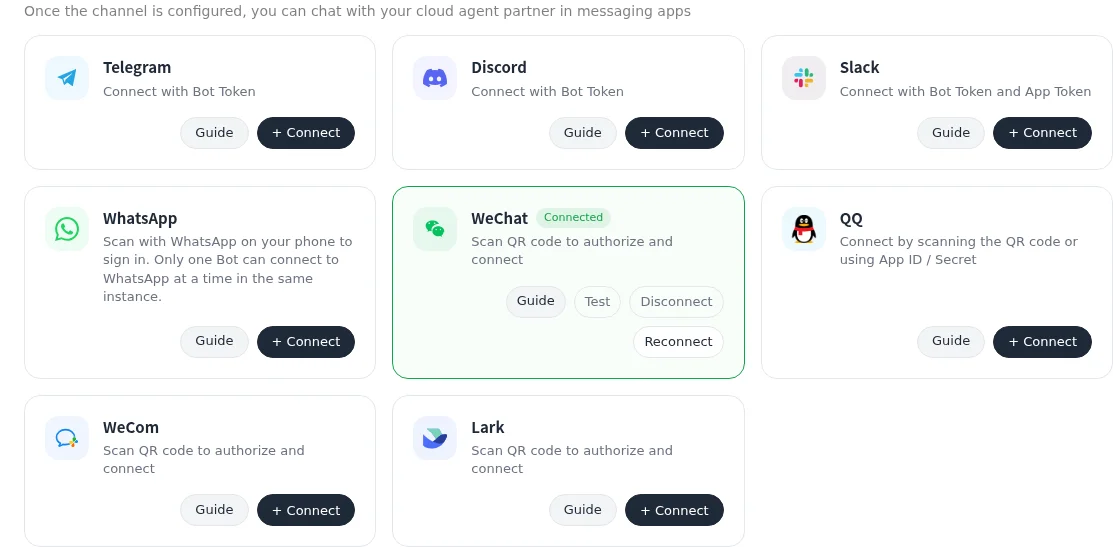
If you want to use a messaging app, connect one channel and verify a reply there. Follow the setup guide for Telegram, WhatsApp, Discord, WeChat, Slack.
Begin with a clear introduction rather than a broad request. For example:
I want you to be my personal planning assistant. I am in Singapore time.
Keep daily plans short, call out deadlines first, and ask one follow-up question when something is unclear.
2. Let memory carry the context that repeats
Hermes builds useful context over time, so you do not need to restate every preference in every conversation. Tell it the facts and working preferences that should remain useful: your time zone, how you want a briefing structured, important project names, or the days you prefer to plan ahead.
You can also state the request directly:
Remember that I prefer a concise weekday briefing at 8:00 AM,
with meetings, deadlines, and the three most important next actions.
Use the Memory Management page to review the memory and user-profile information that Hermes has accumulated. Memory should reduce repetition, not become a dumping ground for every passing detail.
Remembering a preference for a weekday briefing at 8:00 AM does not create a scheduled task. Set up the schedule separately, verify the first run, and check delivery in the selected notification channel.
3. Add a skill only when a real task needs it
Hermes can chat without extra skills. Add one when you can name the practical job it should help with, such as looking up information, organizing a to-do list, or preparing a recurring report. This keeps the assistant understandable and easier to trust.
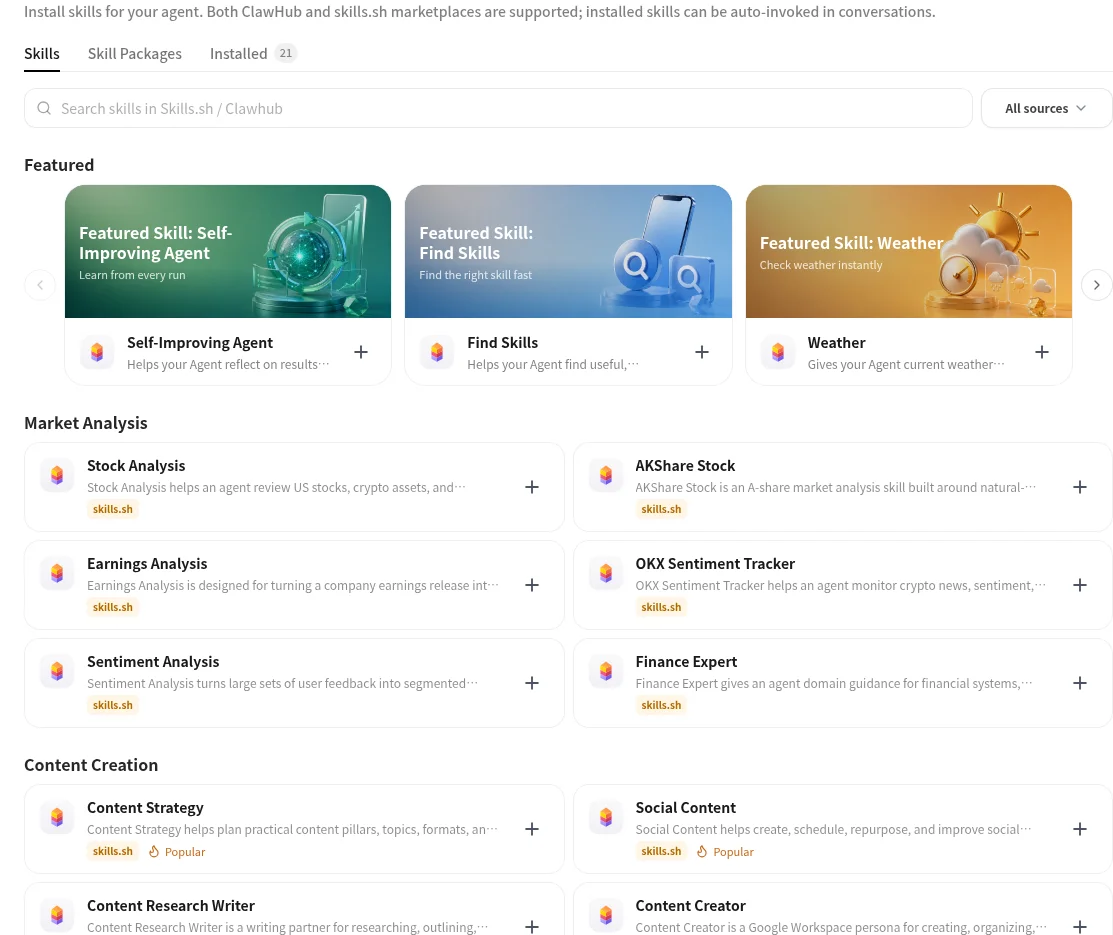
Browse a suitable option in ClawHub, then use Configure Skills to install it. Before you install anything, read its description and choose sources you trust.
4. Turn a useful conversation into a repeatable check-in
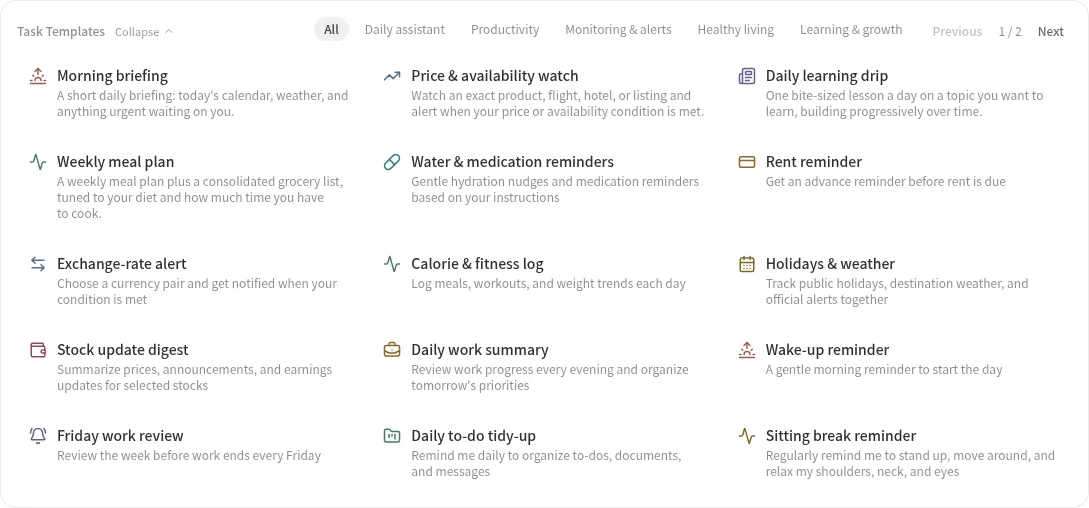
Once a prompt is reliably useful, decide whether it should run on a schedule. A simple scheduled task can ask Hermes for a morning plan, an end-of-day review, or a weekly reset without you remembering to start the conversation.
For example:
Every weekday at 8:00 AM, prepare a concise plan for today.
Start with deadlines and meetings, then suggest three focused next actions.
Set the schedule and notification channel in Scheduled Tasks. Keep the first scheduled task small; you can refine the instruction after you have seen a few real results.
Check each layer
| Layer | Check | Boundary |
|---|---|---|
| Bot and Web Chat | Select the intended Bot and send a short message | Replies require an online Bot and usable model credits or configuration |
| Memory | State a stable preference, start a new conversation, and check it | A new conversation does not clear long-term memory |
| Scheduled task | Confirm the schedule and notification channel, then inspect the result | Creating or copying a Bot does not copy scheduled tasks or channel connections |
Verify the result
Confirm a Web Chat reply before connecting a channel. Test a remembered preference in a new conversation and inspect the first scheduled result. If a channel or task fails, check the selected Bot, its configuration, and the relevant status before adding more features.
FAQ
Do I need to configure every feature before Hermes is useful?
Web Chat is enough to start. If you prefer a messaging app, connect a channel as described below.
Will Hermes remember every message I send?
No. Memory is intended for information that remains useful across conversations, such as preferences, recurring work, and stable context. You can ask Hermes to remember or forget information when needed, then review it in Memory Management.
Can I use the same assistant from more than one channel?
Yes, if those channels are connected to the same Bot. Long-term memory and preferences belong to that Bot. Another Bot has its own workspace: copying gives it a starting snapshot, and later changes are not synchronized.
What should I automate first?
Choose a task you already repeat at a predictable time. Morning planning, a short daily review, or a weekly priority check are good first candidates because you can quickly tell whether the output is helping.
Conclusion
Keep the first assistant focused on one routine. Once chat, memory, and the first scheduled task work for the selected Bot, expand its responsibilities gradually.
Last updated 2026-10-12